







The Calendar Pro Excel Template allows you to create and manage items with dates, and then visualize them in a variety of different calendar types, namely with annual, monthly and weekly calendar views.
The Calendar Pro Excel Template allows you to create and manage items with dates, and then visualize them in a variety of different calendar types, namely with annual, monthly and weekly calendar views.

Struggling to keep track of dates, deadlines, and events? Our Calendar Pro Excel Template is the ultimate solution for effortless planning, combining the familiarity of Excel with powerful scheduling features.
With its intuitive design, you can manage entries in one easy-to-update list, then view them instantly in annual, monthly, or weekly formats—perfect for personal or professional use.
Created by Excel Wonders, experts in advanced spreadsheet tools, this premium template builds on our popular free version, adding customization, export options, and detailed filtering capabilities.
Trusted by thousands of users worldwide, Calendar Pro Excel Template is a reliable, flexible, and secure way to master your time management in Excel.
Features:
Sorry! No Reviews Yet!
At the moment, we don't have any reviews for the Calendar Pro Excel Template.
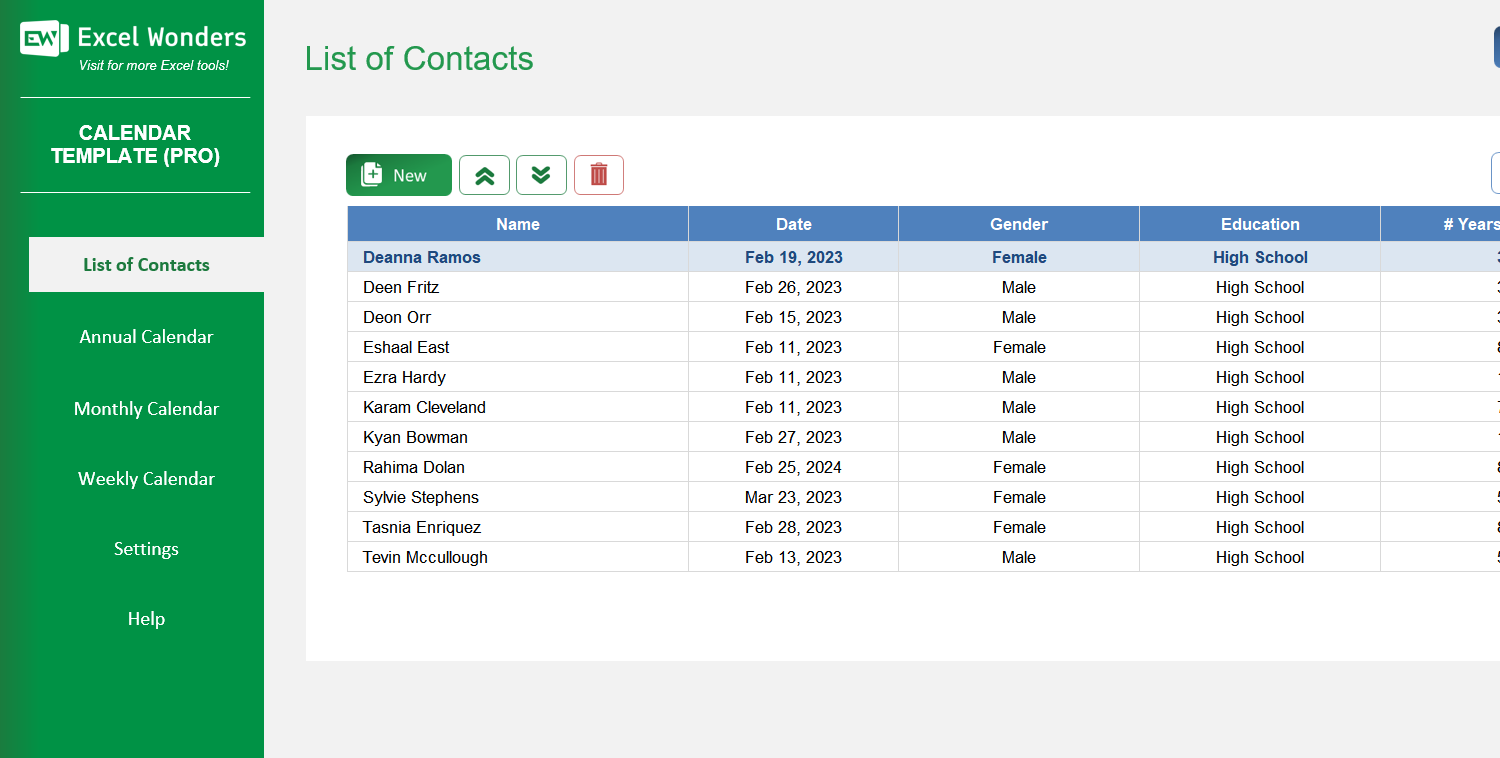
All calendar entries are managed on the 'List' sheet. You can perform several actions: • Add: Click the 'New' button. • Delete: Select a record and click 'Delete'. • Reorder: Use the 'Move Up'/'Move Down' buttons for manual sorting, or the 'Sorting' button for automatic sorting.
Yes. You can add up to three custom columns to the 'List' table. Go to the 'Settings' sheet to enable or disable these columns and to edit their labels. The default 'Name' and 'Date' columns cannot be changed.
Yes. In the 'Settings' sheet, you can define the singular and plural terms for your calendar entries (e.g., 'Event' and 'Events'). This custom name will be used throughout the template.
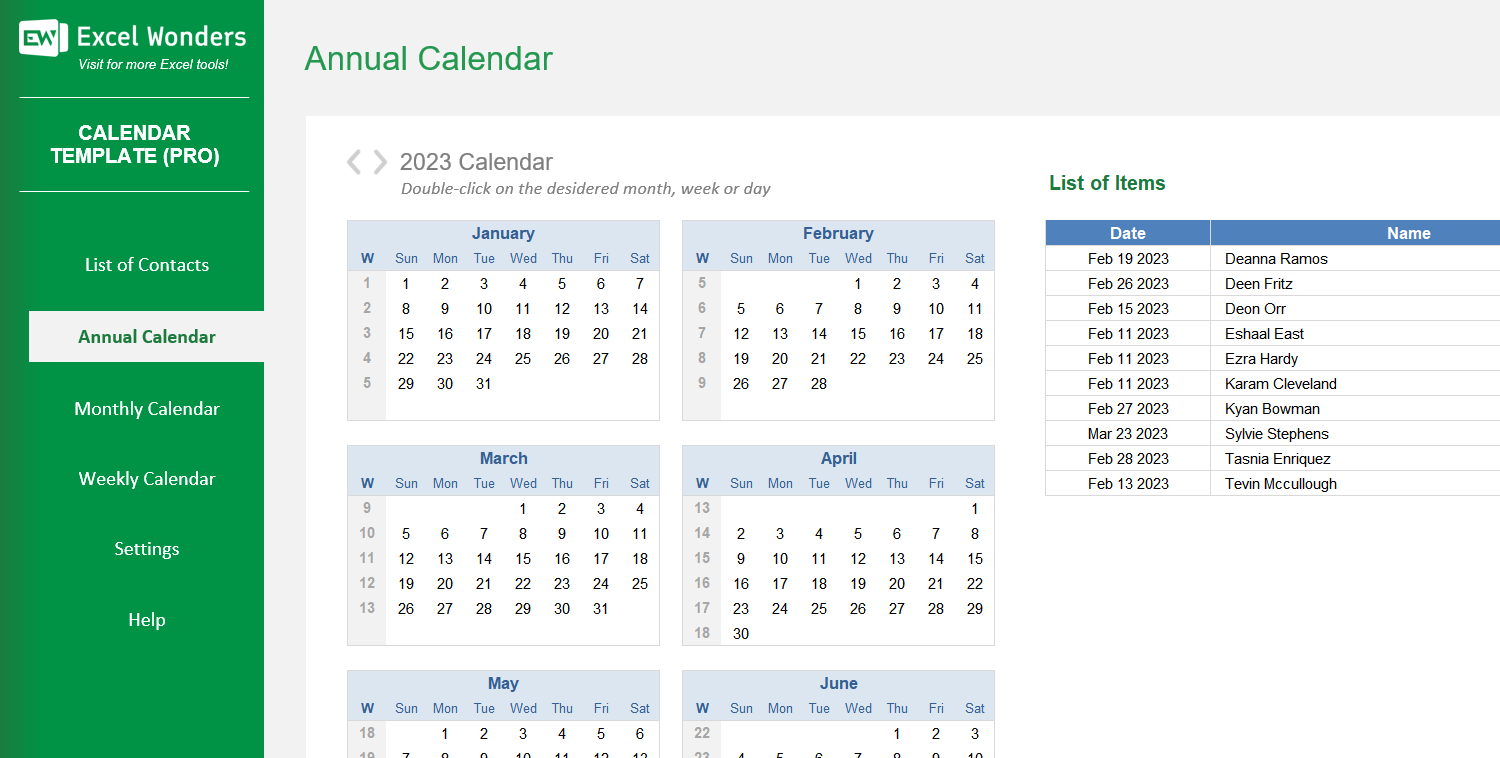
The 'Annual Calendar' sheet displays a full-year calendar on the left and a list of entries on the right. By default, it shows all entries for the year. To filter the list, double-click on a specific month, week number, or day.
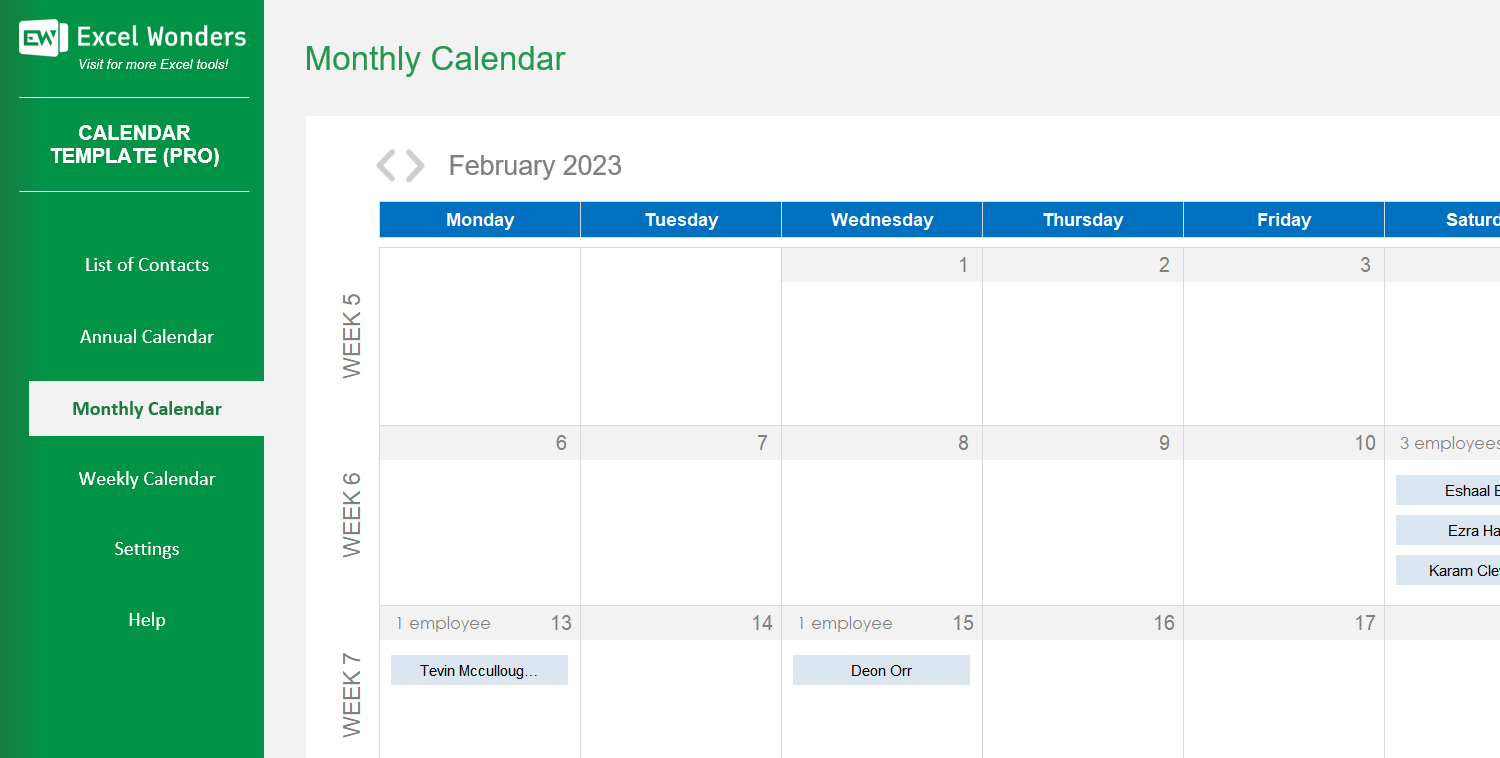
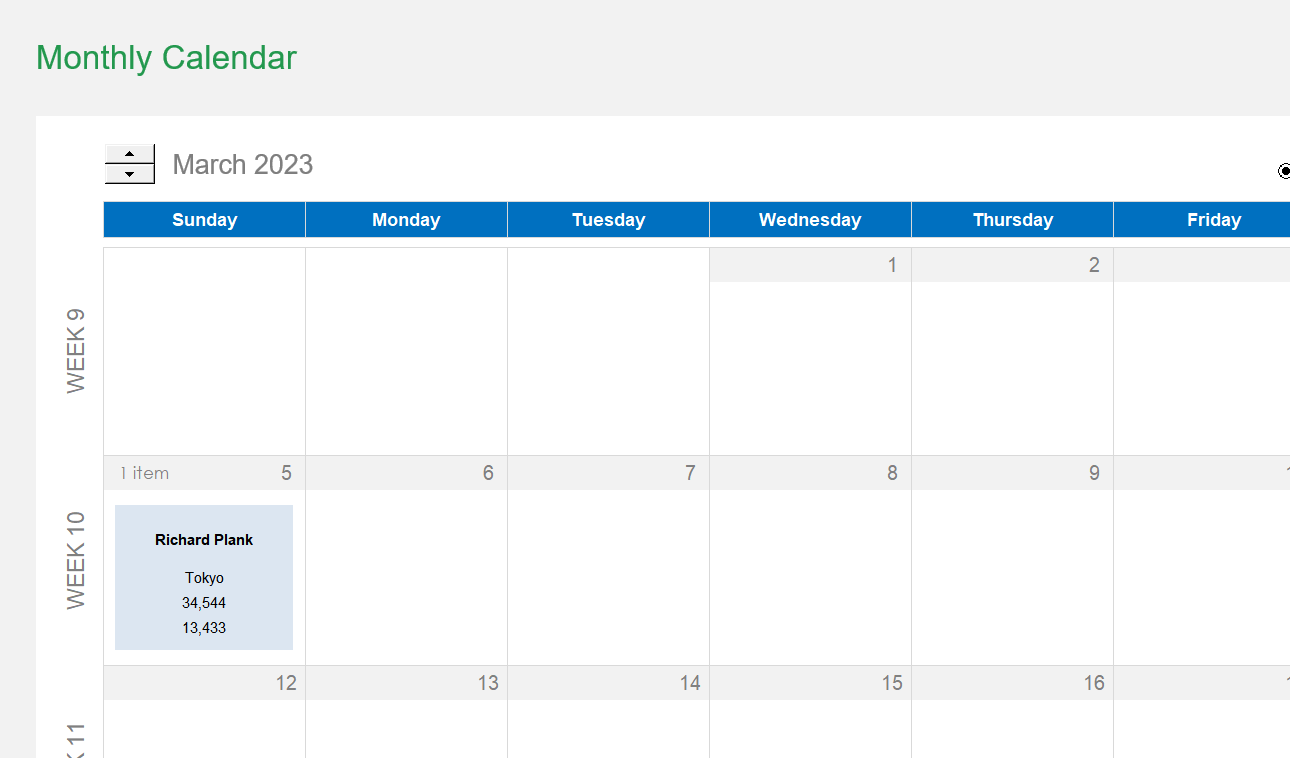
This sheet provides a traditional month view. Use the arrow buttons at the top to navigate between months. In 'Settings', you can also choose whether each day displays a maximum of one or three records.
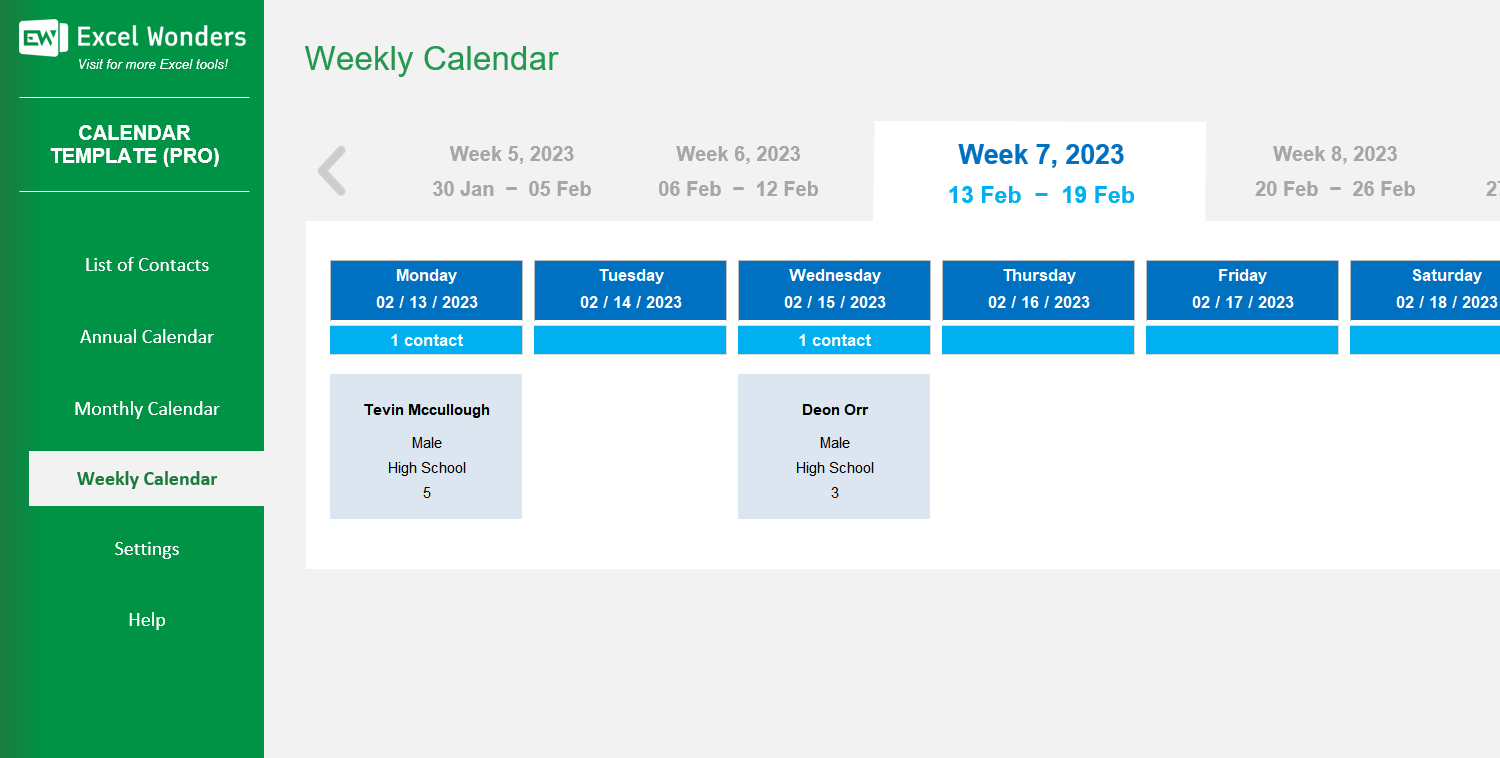
This sheet displays one week at a time. Use the 5-week navigation bar at the top to select a week. The calendar will update to show the entries for the selected period.
Yes. Each calendar view ('Annual', 'Monthly', and 'Weekly') has an 'Export' button in the top-right corner. Click it to open a dialog where you can set the file name, type, and location for your exported calendar.















 Share Options