






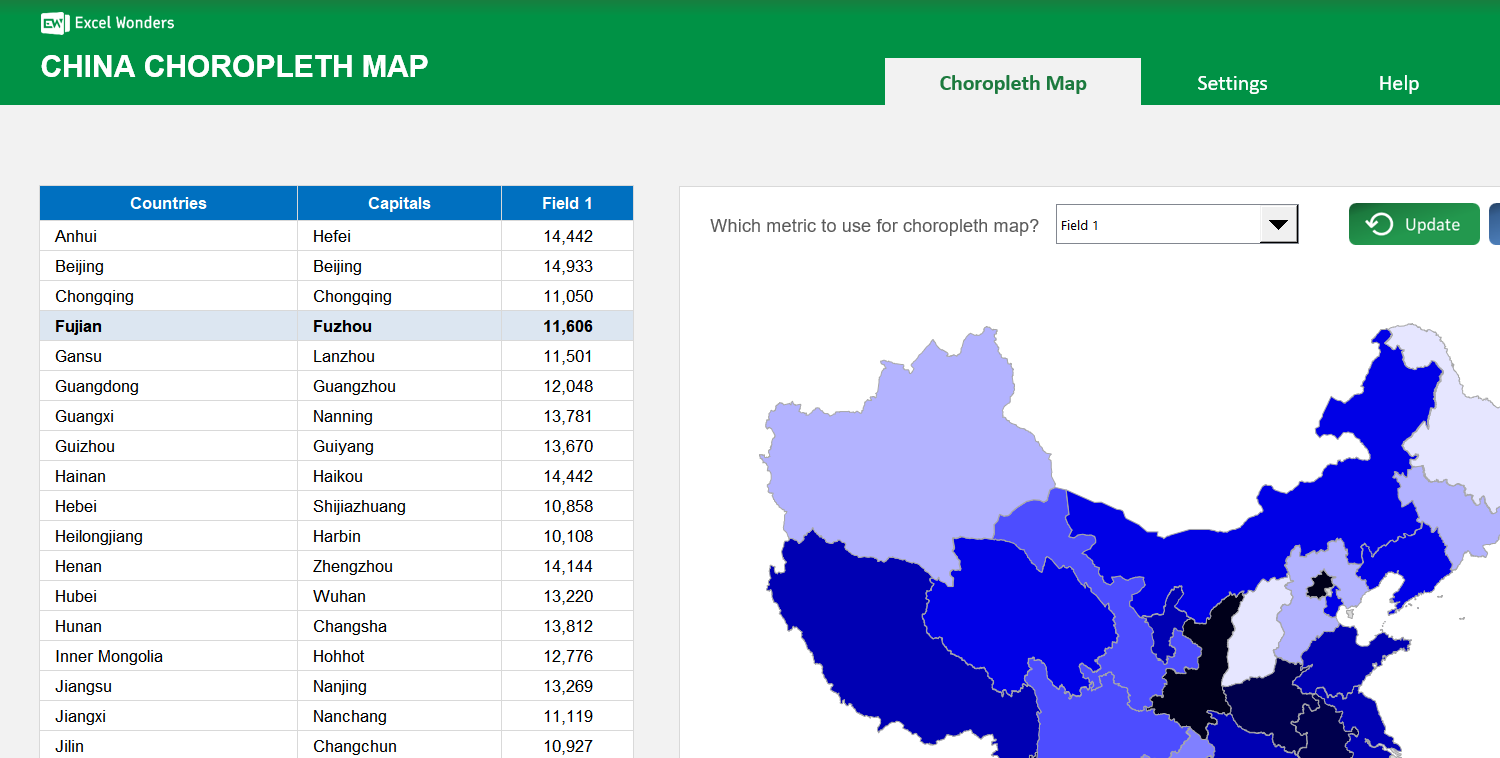
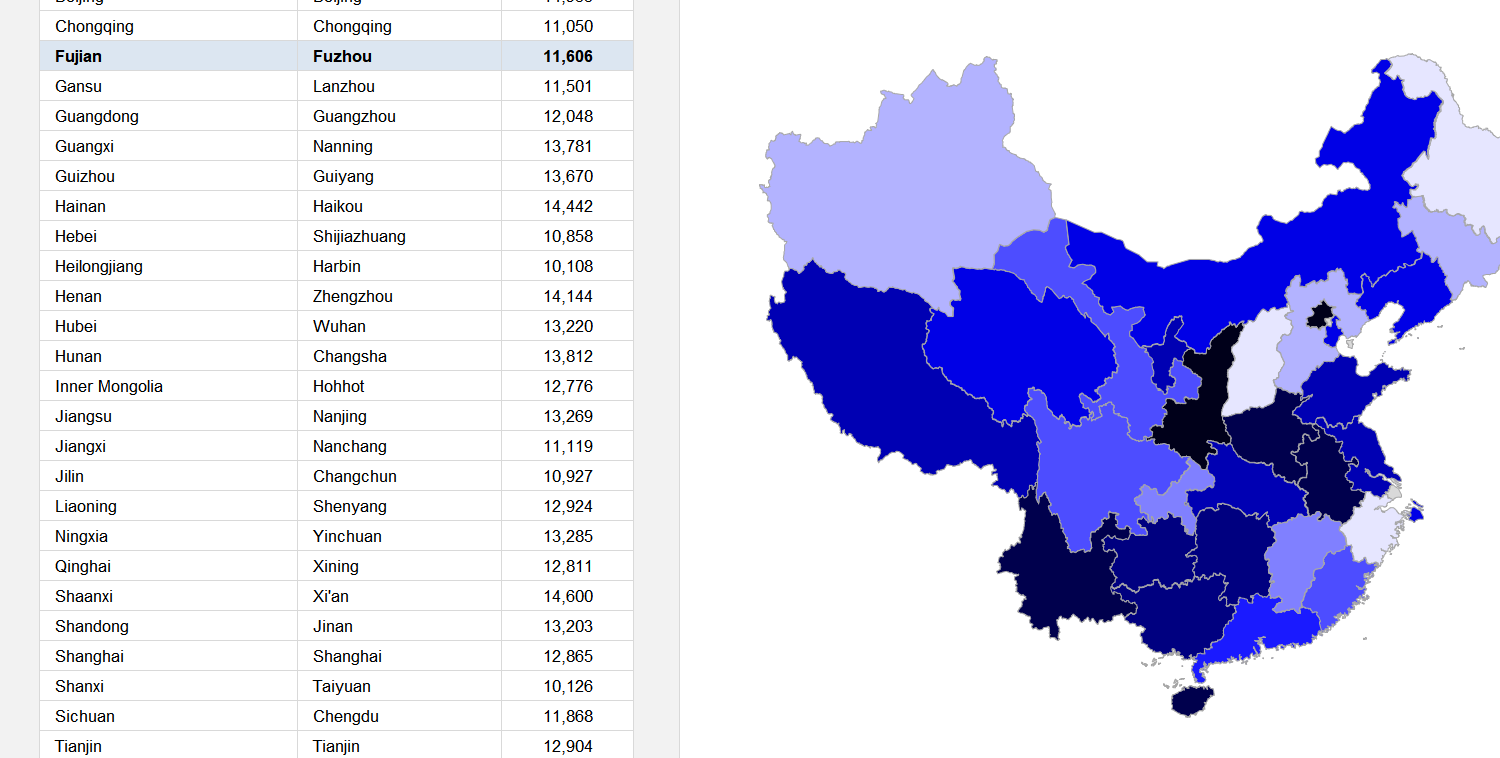
The China Choropleth Map Excel Template allows you to create a map of China, broken down by regions, with each region colored according to how they rank against a specific metric. It is a highly effective method, that can be used for any given metric that you want.
The China Choropleth Map Excel Template allows you to create a map of China, broken down by regions, with each region colored according to how they rank against a specific metric. It is a highly effective method, that can be used for any given metric that you want.

Bring your data to life with the China Choropleth Map Excel Template, the perfect tool for anyone struggling to present complex provincial statistics clearly. Designed for effortless use, it transforms raw numbers into a vivid, interactive map.
Visualize China’s provinces using intuitive, color-coded metrics that make patterns instantly clear. Whether for education, research, or reporting, it helps you communicate insights with impact and precision.
Created by Excel data visualization specialists, this template reflects years of experience in turning spreadsheets into powerful, story-driven visuals. Every feature is optimized for Excel users of all levels.
Trusted by analysts, educators, and business users worldwide, our template includes complete province and capital reference data, customization options, and step-by-step guidance to ensure accurate, professional results.
Features:
Sorry! No Reviews Yet!
At the moment, we don't have any reviews for the China Choropleth Map Excel Template.
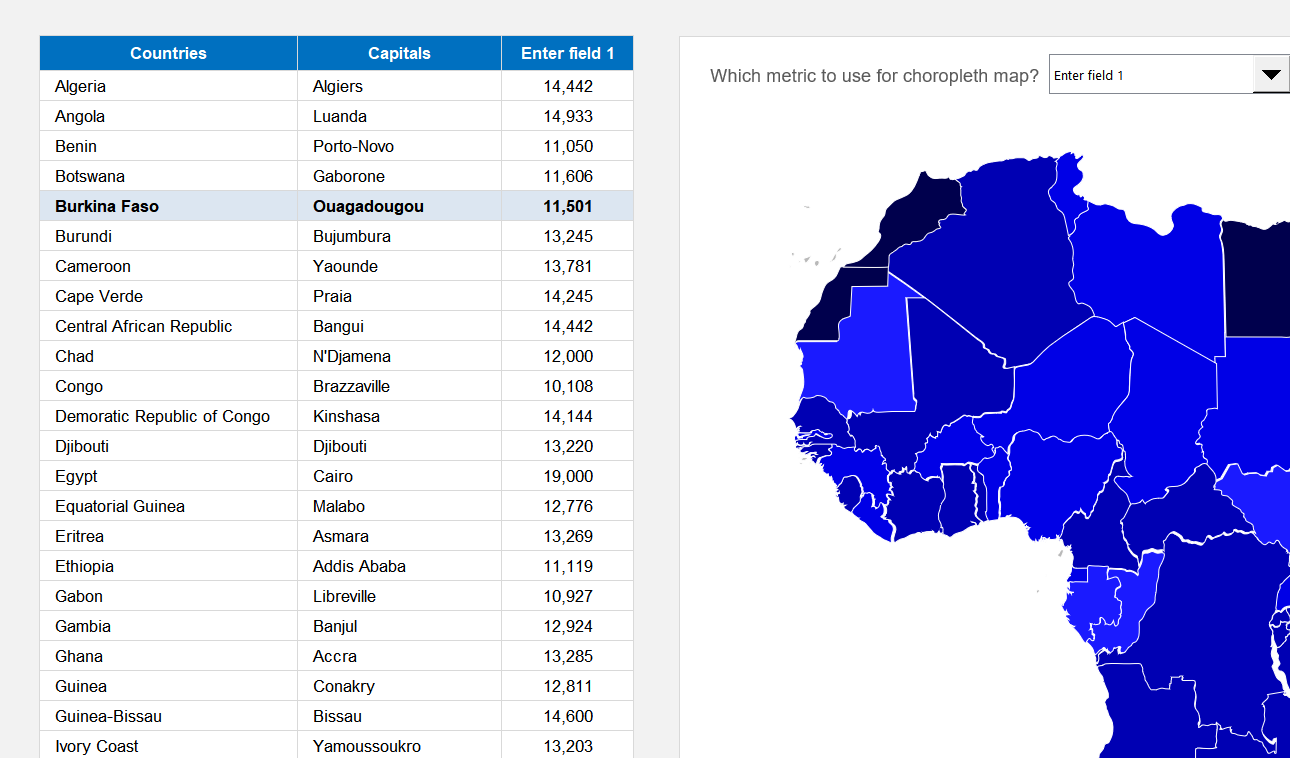
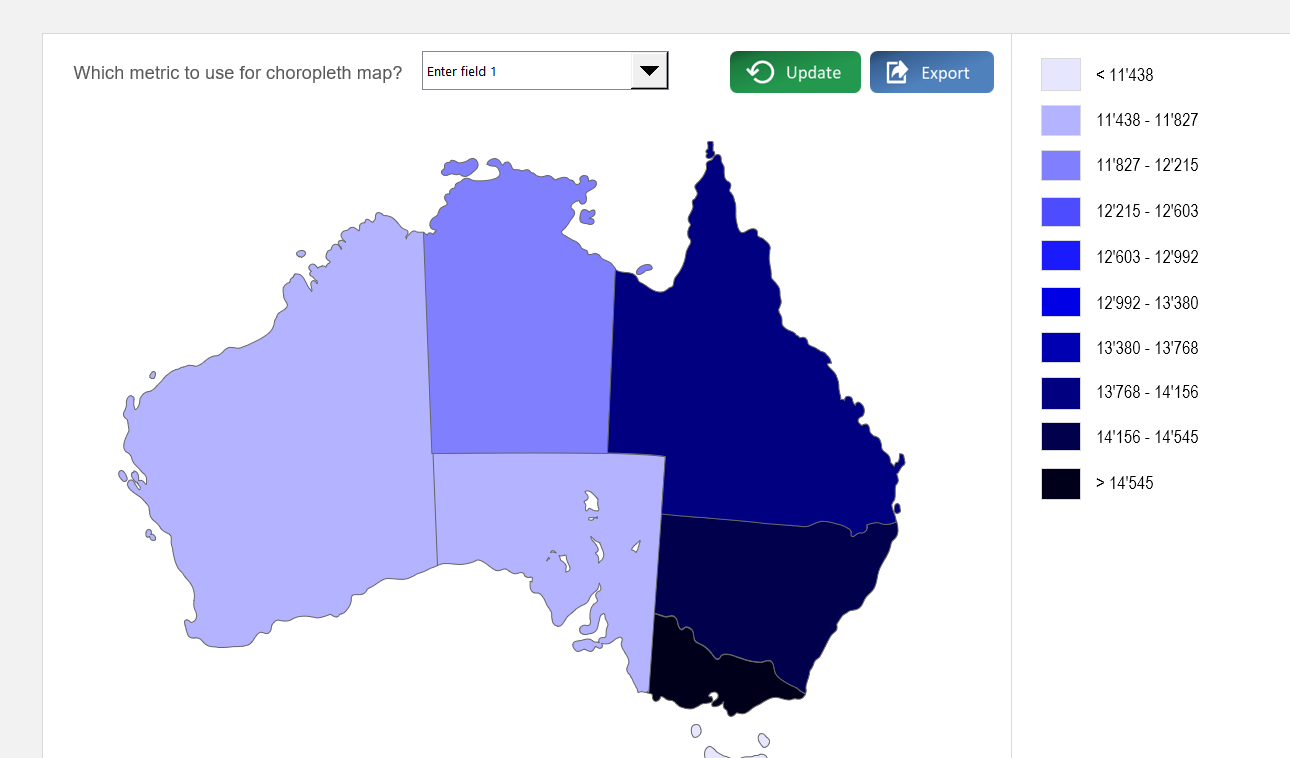
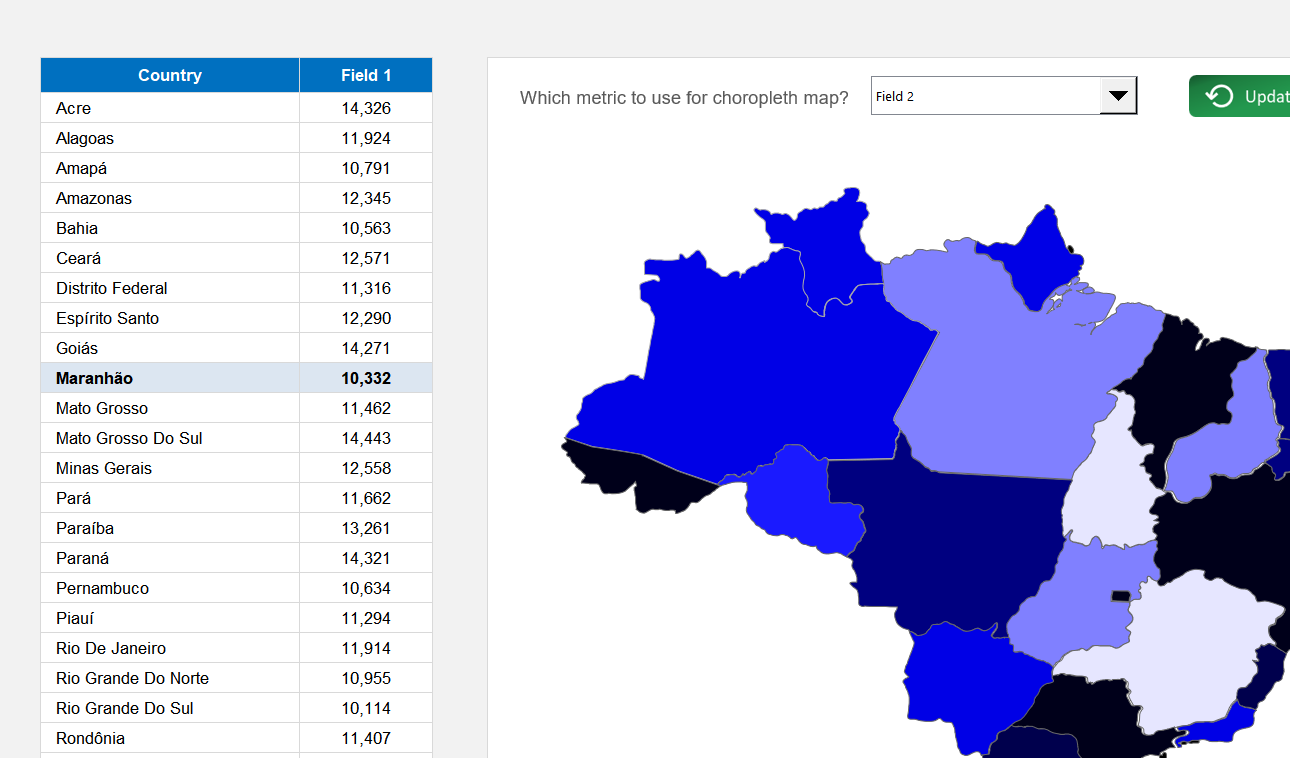
This template creates a choropleth map of China where each region is color-coded based on its value for a specific metric. You can use it to visualize any region-level dataset.
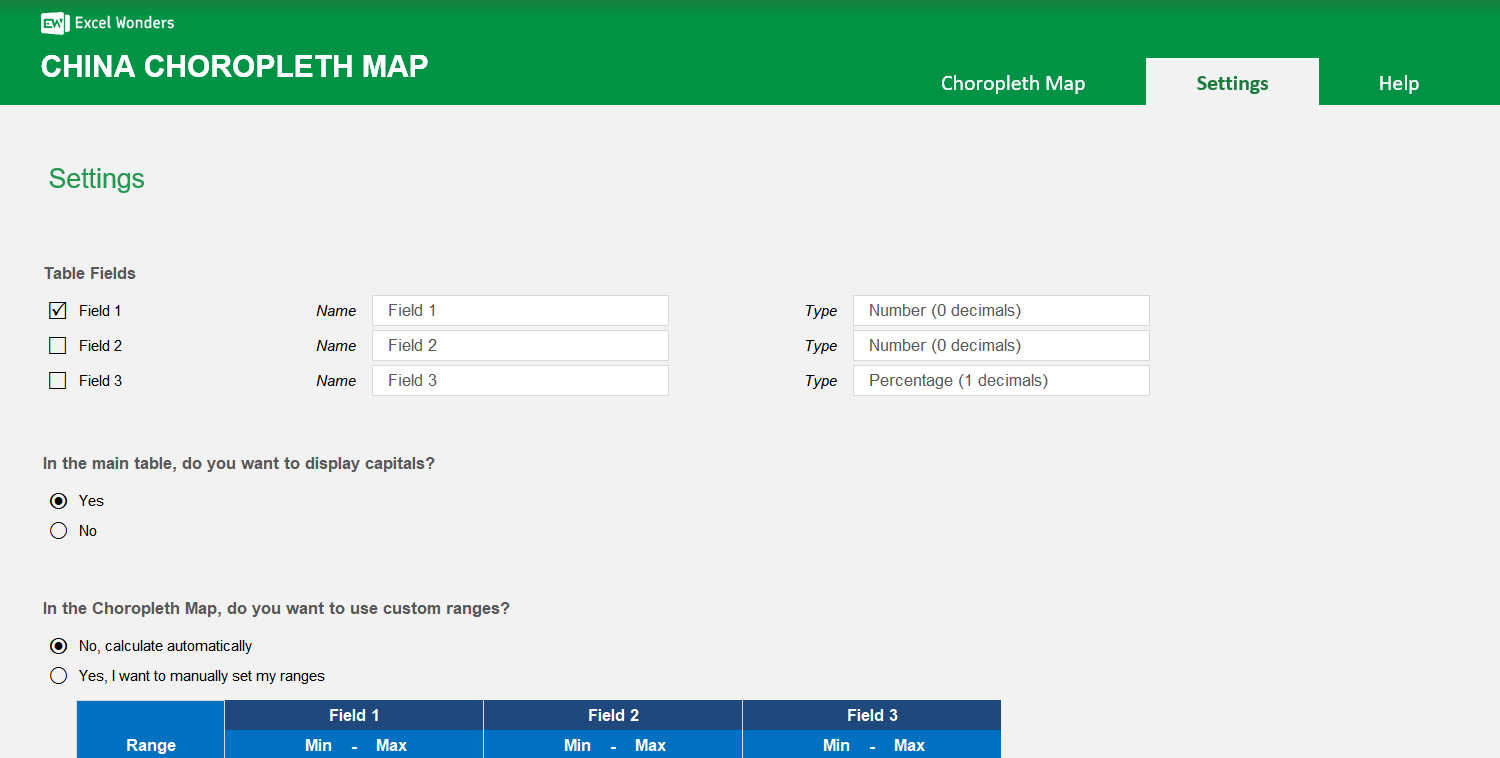
The data table supports up to three data fields per region. Enter your values directly into the table. To customize the field names or to show only one or two fields, go to the "Settings" sheet.
Yes. In the "Settings" sheet, you can set the number format for each data field. Options include absolute number (0 or 1 decimal place) and percentage (0 or 1 decimal place).
On the "Choropleth Map" sheet, use the dropdown menu located above the map to select which of the three data fields to visualize. The map's colors will update automatically.
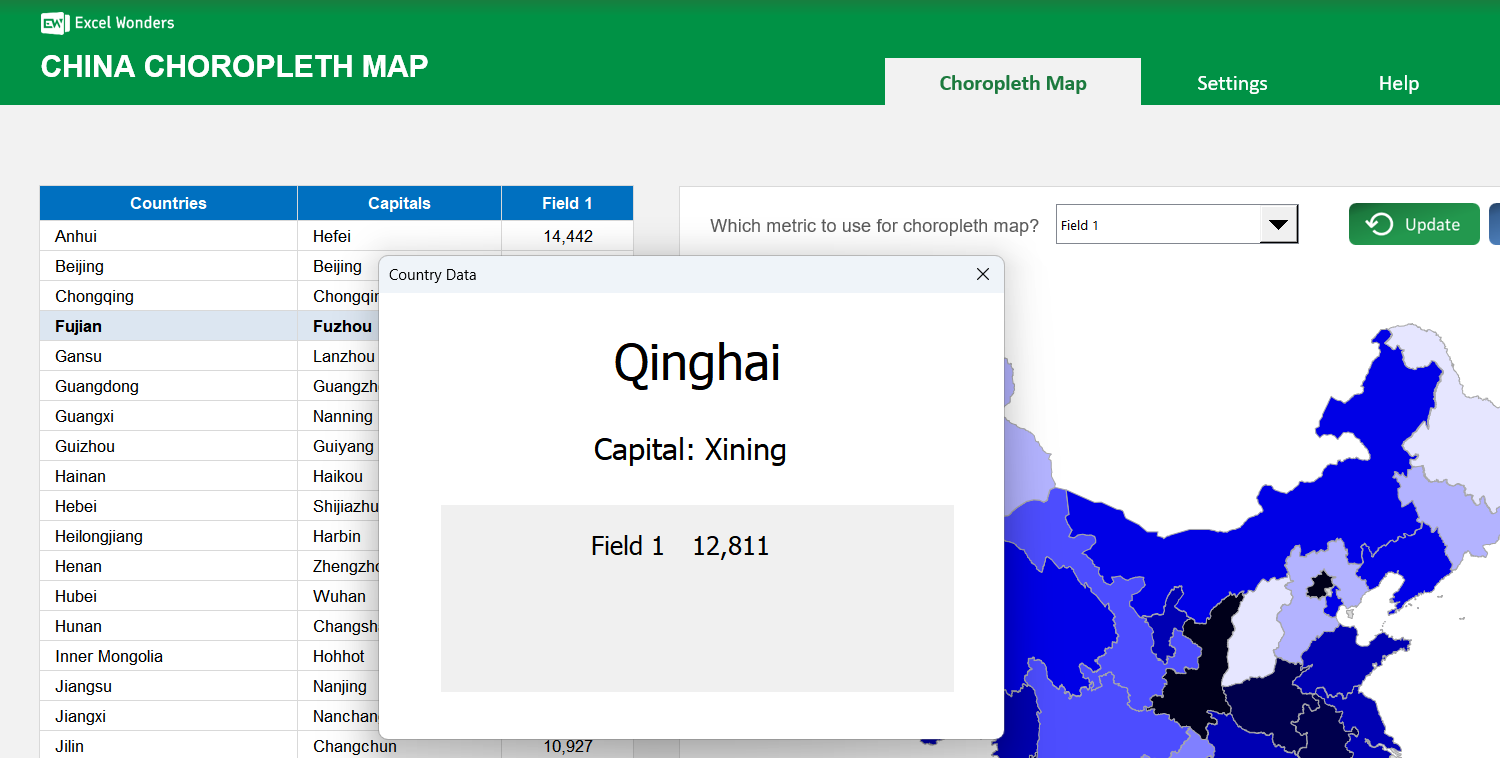
Click on any region directly on the map. A pop-up window will appear displaying that region's name, capital (if enabled), and data for all active fields.
Yes. Go to the "Settings" sheet and set the option for capital visibility to "No". This hides the capitals column in the data table and removes them from the region-specific pop-up.
In the "Settings" sheet, you can choose between two methods: Automatic Ranges, where the template divides your data into 10 even ranges, or Manual Ranges, where you define up to 10 custom data ranges.
Yes. Both the region color scheme and the map background color can be changed in the "Settings" sheet. Use the provided dropdown menu and color picker to make your selections.















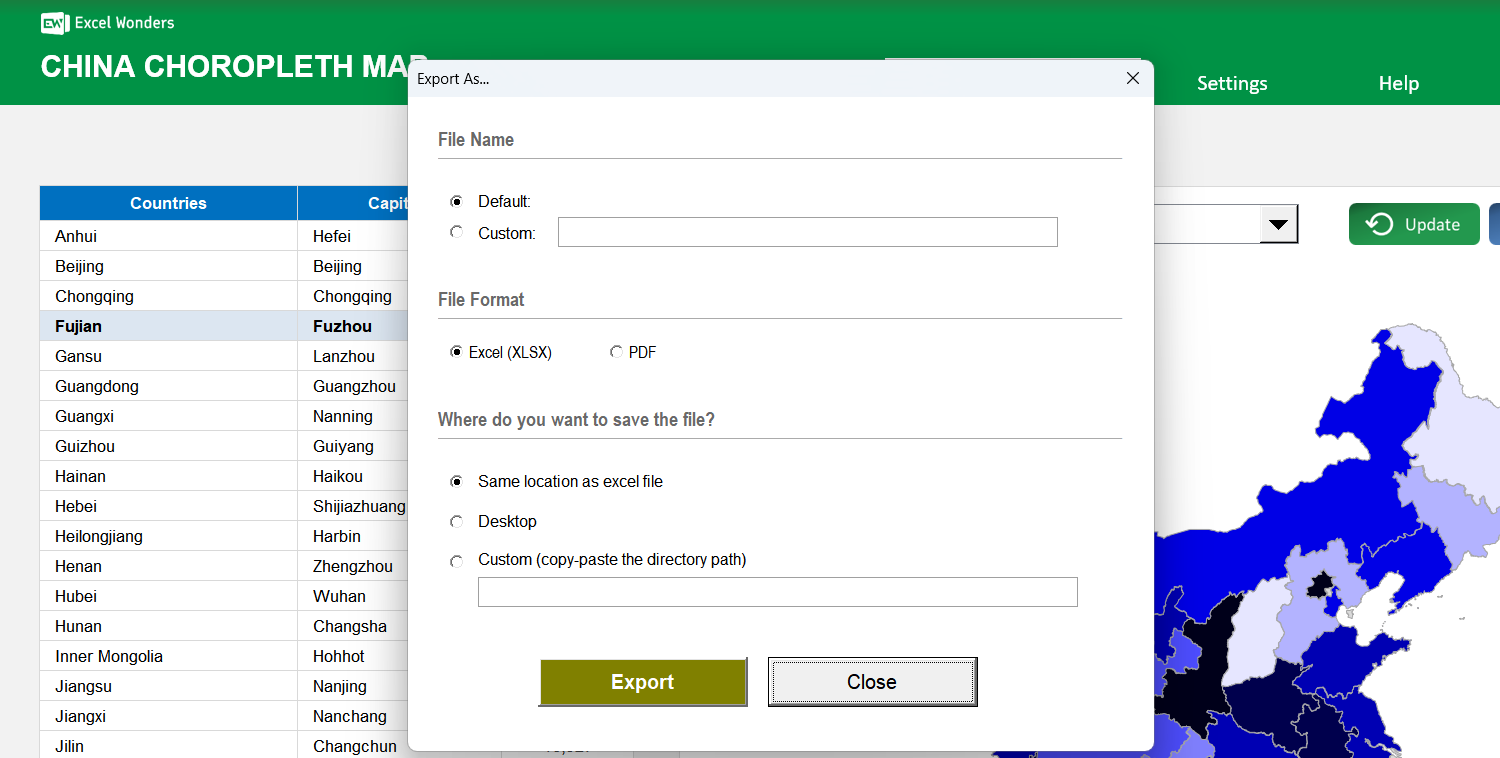
 Share Options