







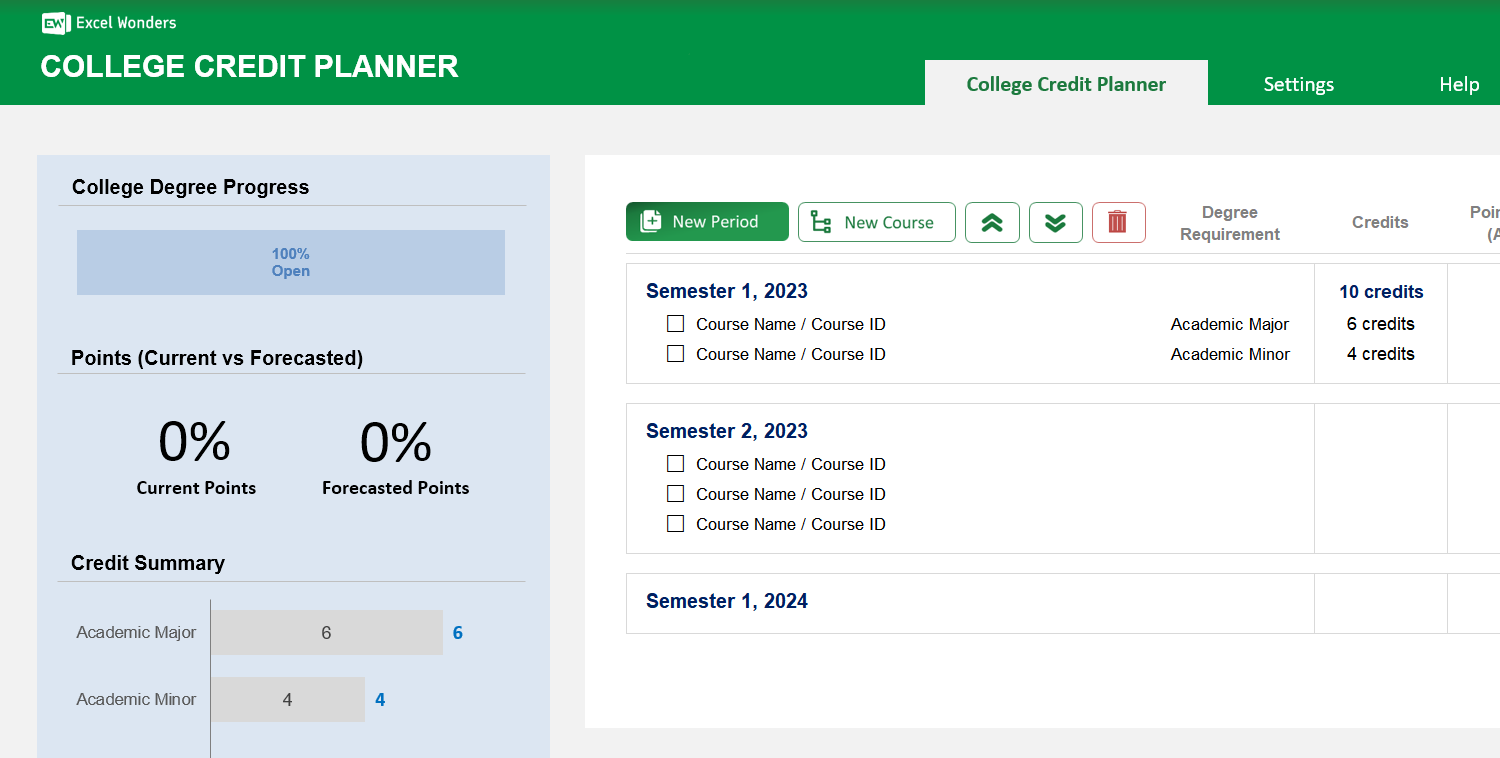
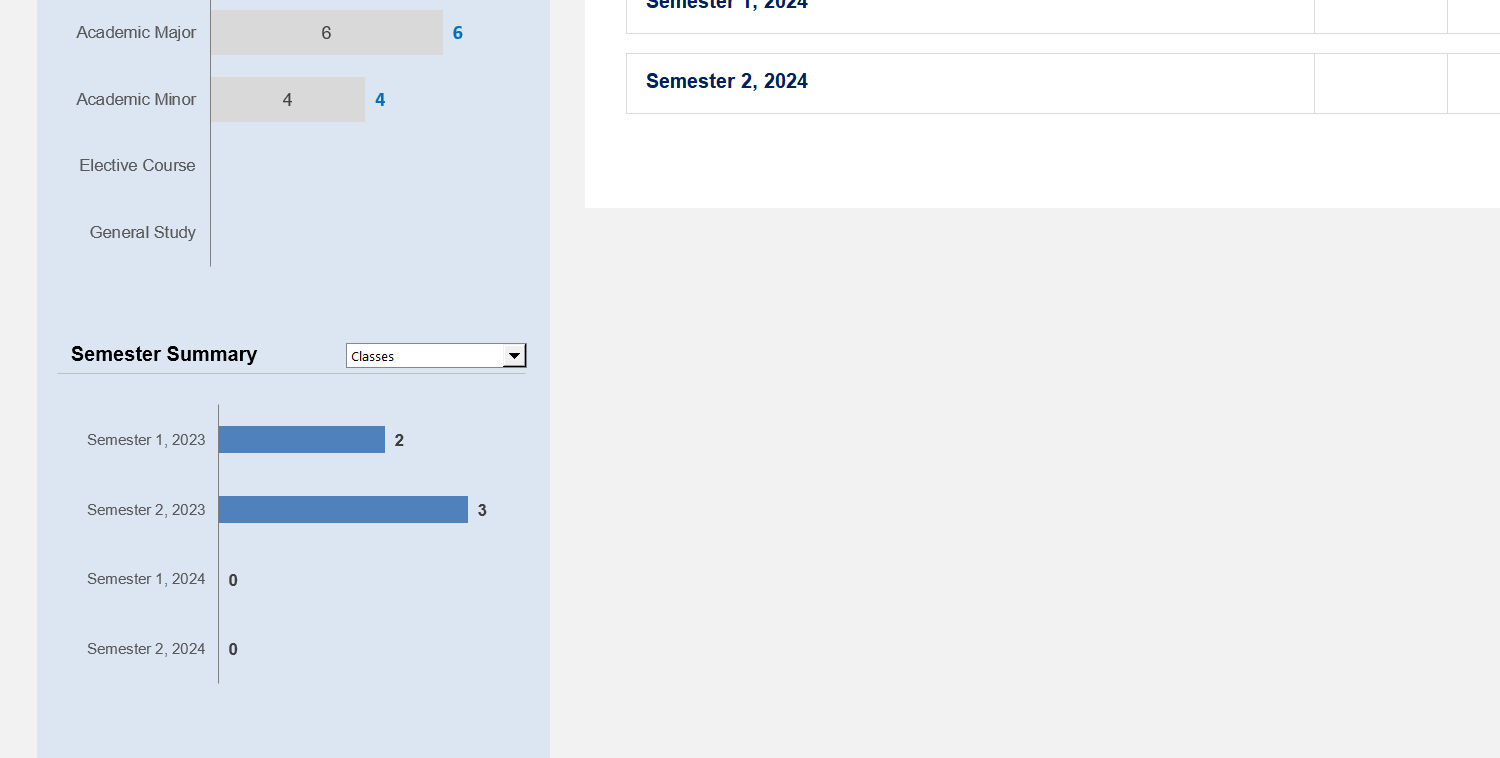
The College Credit Planning Excel Template allows students to plan ahead their 4-year degree, select courses and display in one sheet the entire record ahead and track college credits and courses as you go through your degree.
The College Credit Planning Excel Template allows students to plan ahead their 4-year degree, select courses and display in one sheet the entire record ahead and track college credits and courses as you go through your degree.

Planning a college degree can feel overwhelming, especially when tracking credits and courses across multiple semesters. Our College Course Planner Template Excel is designed to simplify this process, keeping you organized from freshman year through graduation.
With this powerful college planning spreadsheet template, you can map out every course, credit, and grade in a single, easy-to-use Excel sheet. Forecast your GPA, adapt to any academic schedule, and ensure you meet all degree requirements without surprises.
Created by experienced academic planners, this 4-year college course planner Excel tool supports both US GPA and custom grading systems. Its structured design makes it ideal for students in any field, offering professional-grade organization for academic success.
Trusted by students worldwide, Excel Wonders templates are built for accuracy, flexibility, and ease of use. Your download includes step-by-step setup guidance, ensuring you can start planning your degree within minutes.
Features:
1 review
1 review
Loved this template! Recommended!
Review for: College Credit Planning Excel Template
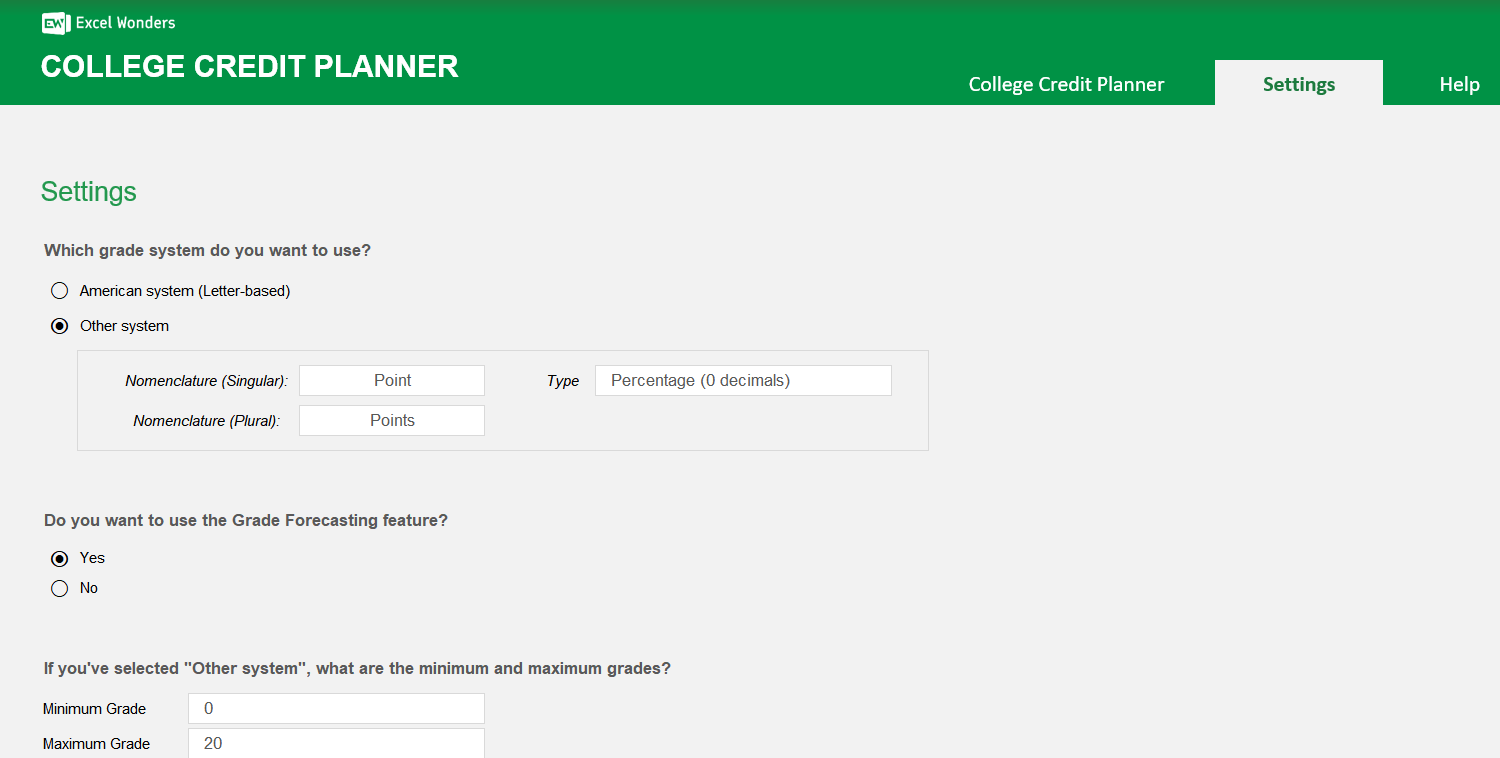
First, go to the 'Settings' sheet to define the academic periods you will use (e.g., 'Semester 1', 'Year 2'). Once defined, you can add these periods to your plan on the 'College Planner' sheet.
On the 'College Planner' sheet, select the academic period to which you want to add a course, then click the 'New Course' button. A new course row will appear under that period.
Once a course is added, you can manage it in several ways: • Edit: Click directly on a cell to change its details. • Mark as Complete: Use the checkbox in the first column. • Reorder: Use the move up/down buttons to change a course's position. • Delete: Select a course and click the delete button.
The template uses two types of grades: • Actual Grade: The final grade you received for a completed course. • Forecasted Grade: The grade you expect to receive for an incomplete course. The summary view combines these to calculate your overall GPA.
Yes. You can turn this feature on or off by navigating to the 'Settings' sheet and adjusting the corresponding option.
You can choose between two grading systems in 'Settings': • US GPA System: A standard American GPA scale. • Custom System: Allows you to define your own grading scale, including custom names and minimum/maximum point values.














 Share Options