






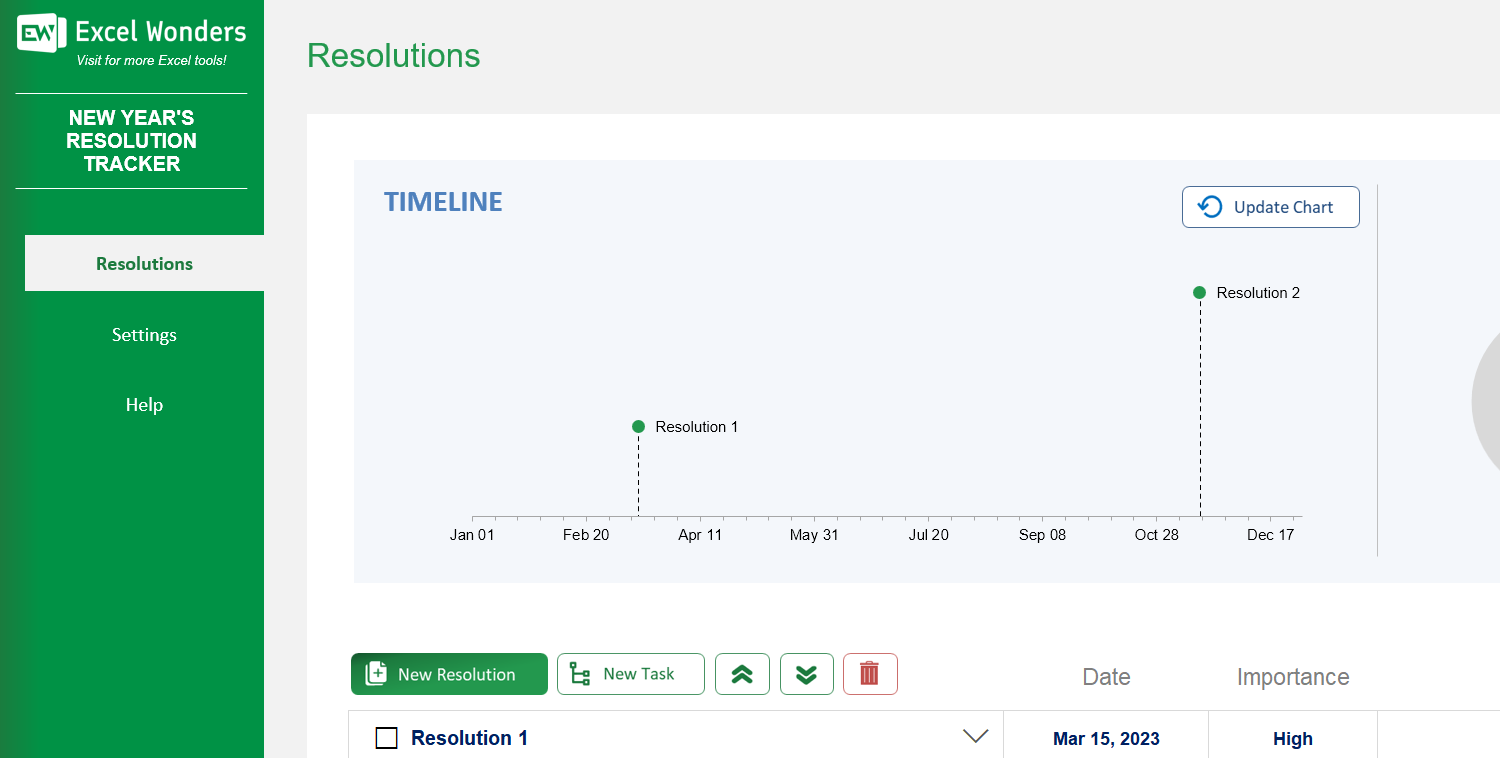
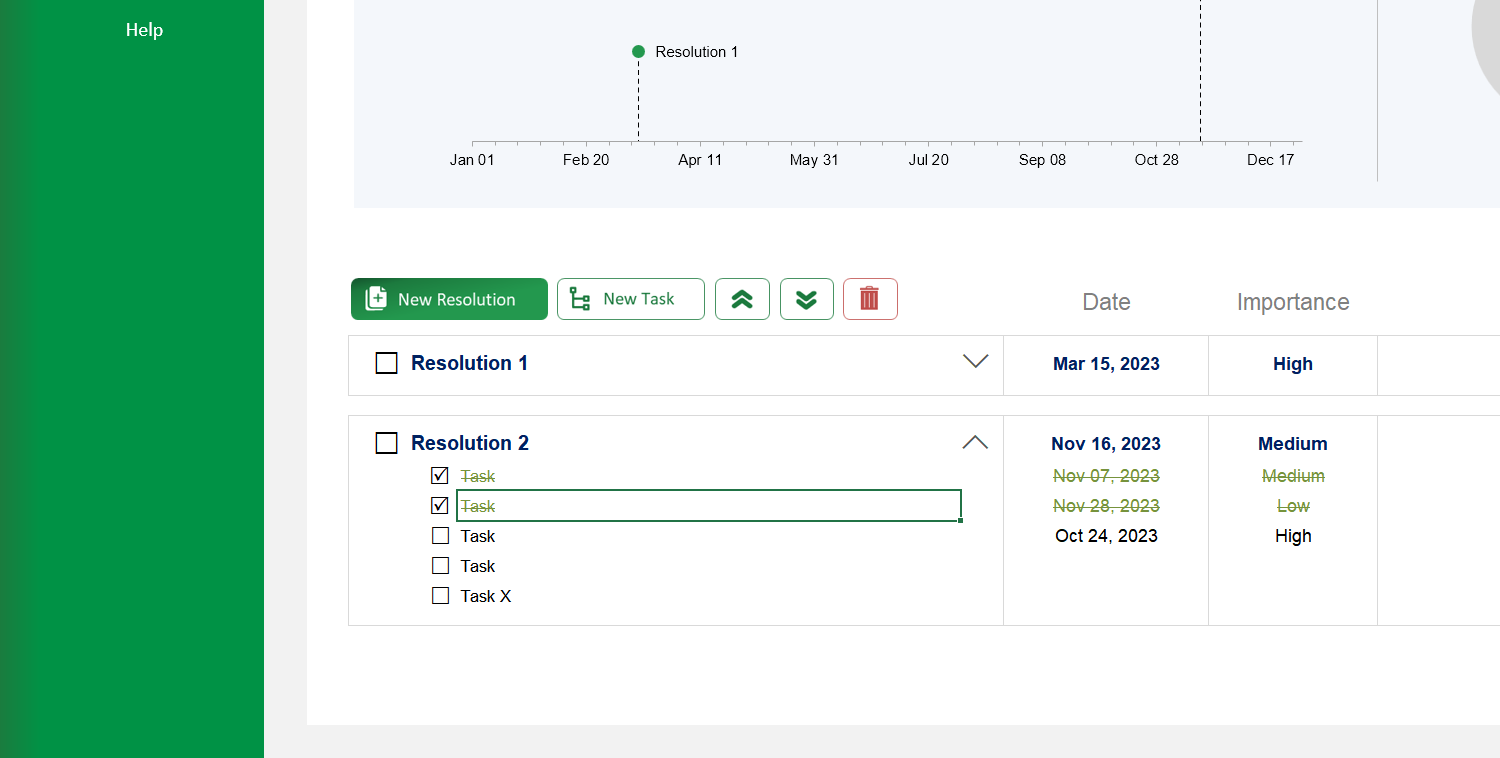
The New Year's Resolution Tracking Excel Template is the perfect tool to list all the things you want to accomplish in the new year, map out the different tasks needed to accomplish each resolution and track which resolutions you are accomplishing over time.
The New Year's Resolution Tracking Excel Template is the perfect tool to list all the things you want to accomplish in the new year, map out the different tasks needed to accomplish each resolution and track which resolutions you are accomplishing over time.

Struggling to keep your New Year’s resolutions on track? Our New Year’s Resolution Tracking Excel Template is the ultimate tool to turn your annual goals into actionable success. Say goodbye to forgotten promises and hello to measurable progress.
This resolution tracker template breaks your big ambitions into manageable tasks, complete with due dates and priority levels, making achievement feel achievable. Whether it’s health, career, or personal growth, you’ll have a clear roadmap every step of the way.
Created by efficiency enthusiasts with years of productivity tool expertise, this Excel template blends simplicity with powerful functionality so you can focus on what truly matters — taking action and reaching milestones.
Trusted by users worldwide for its intuitive design and customizability, it offers a proven, structured approach to making your New Year’s resolutions last beyond January.
Features:
Sorry! No Reviews Yet!
At the moment, we don't have any reviews for the New Year's Resolution Tracking Excel Template.
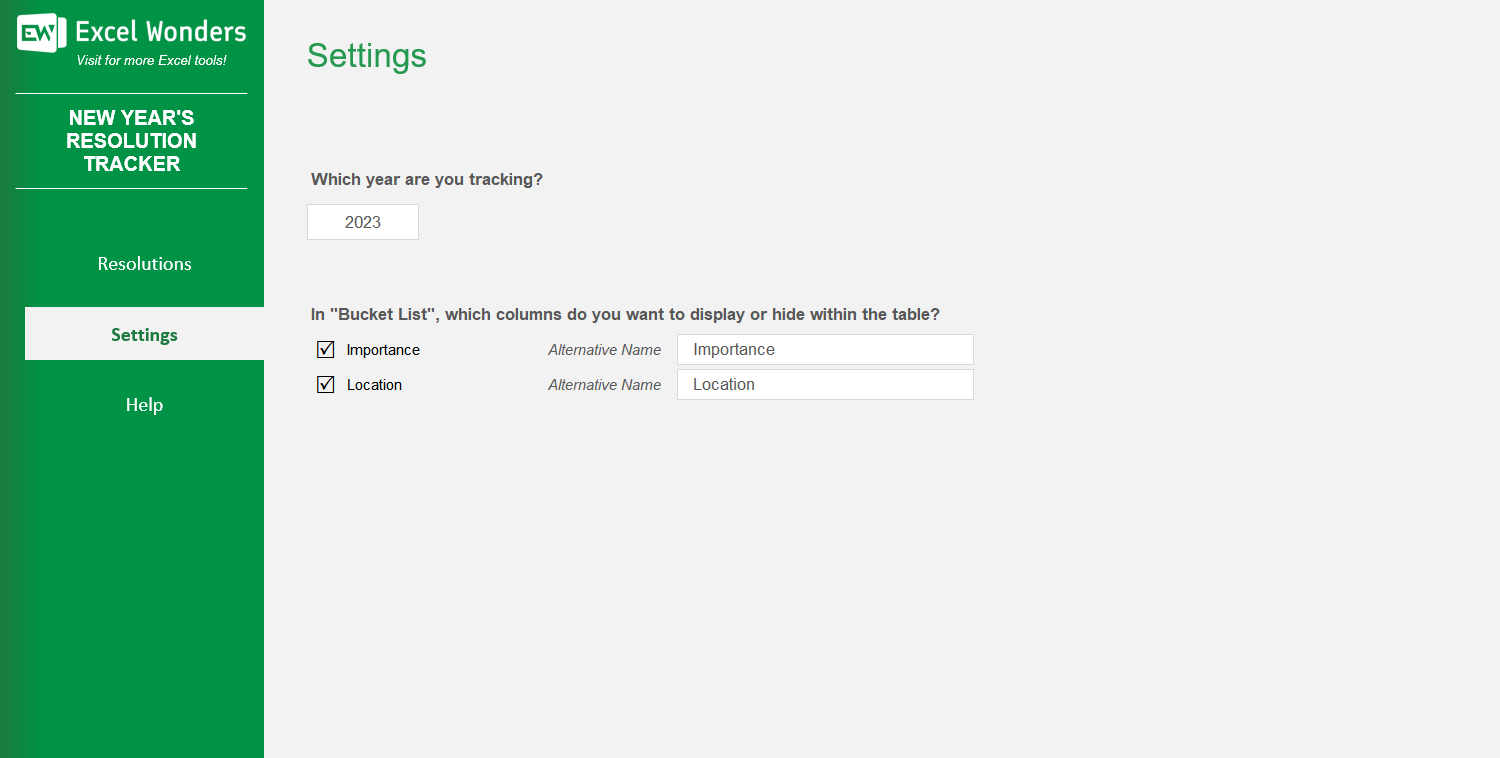
These three columns are customizable fields for your tasks. You can manage them on the 'Settings' sheet: • To edit labels: Change the text for each column header. • To hide columns: Uncheck the box next to a column's name to hide it by default on the 'Resolutions' sheet.
This template helps you list your annual goals (resolutions), break them down into actionable steps (tasks), and track your progress throughout the year in a structured manner.
You can manage your resolutions on the 'Resolutions' sheet: • To add: Click the green 'New Resolution' button. • To remove: Select the resolution you wish to delete and click the red delete icon. Note: Deleting a resolution will also permanently remove all of its associated tasks.
Tasks are the individual, actionable steps required to achieve a resolution. To add a task, select either the main resolution or an existing task, then click the 'New Task' button. A new task row will be inserted below your selection.














 Share Options